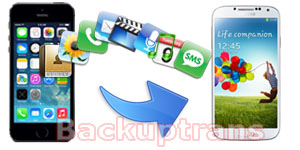
How to Transfer Data from iPhone to Android in Clicks

Posted by Unknown Minggu, 10 November 2013 0 komentar
"I get a new Android phone how to copy data from my old iPhone to Android?"  -Shelly

It it easy to do it with Backuptrans iPhone Data to Android Transfer. It is designed to transfer data including Music, Video, Photo, Playlist, Message (SMS & MMS), Contact, Calendar, Call history, Bookmark etc from iPhone to Android Phone directly on computer. All these data will be merged perfectly on your Android Phone.  Just connect both your iPhone and Android phone to computer and click the "Transfer" button, and you will get it done in a few seconds.  If you are using Mac, please download Backuptrans iPhone Data to Android Transfer for Mac to use.


The follow tutorial shows you how to transfer Data from iPhone to Android step by step:

Step 1: Run Backuptrans iPhone Data to Android Transfer on computer and connect your iPhone & Android Phone to computer using the USB cable. Then the software will automatically read data from iPhone & Android and show detail on its main interface.

Step 2:  Click iPhone on Backuptrans left panel and then select "Music" "Video" "Photo" "Messages" "Contacts" "Bookmarks" etc section . 

Step 3: Turn to top toolbar and press "iPhone to Android" button.

    
Tip: Or you can right click the section under source iPhone and then choose "Transfer from iPhone to Android".
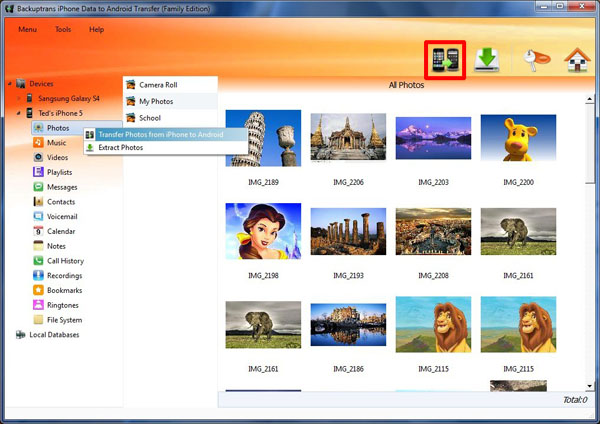
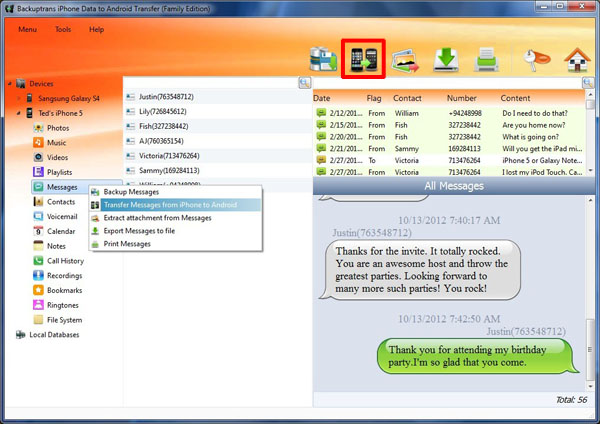


Step 4:  Select target Android to transfer data to. Click Confirm to continue.

Done! All your Music, Movie, Photo, Playlist, Camera Roll, Message(SMS & MMS), Contact, Calendar, Call history, Bookmark have been transferred and merged perfectly on your Android Phone.

Free download Backuptrans iPhone Data to Android Transfer on your computer to try.

For Mac, please use please use Backuptrans iPhone Data to Android Transfer for Mac.

Baca Selengkapnya ....

EA Sports Cricket 2013 For PC Free Full Version Download

Posted by Unknown Jumat, 25 Oktober 2013 0 komentar

Electronic Arts Cricket game Download Full Version for pc. Cricket game IPL 2012 and cricket game 2013 IPL game download full version free.T20 cricket game.

System Requirments

  • Processor : 1 GHz
  • RAM : 256 MB 
  • Video Memory : 32 MB 
  • Hard Drive Space : 1.2 GB or more as its PAtch 
  • DirectX Version : 9.0 with 
  • Sound Card: Direct x compatible sound card
  • Operating System : Windows 2000 / Windows XP or higher

EA Sports Cricket Screen Shoots | Wallpapers Of Cricket Games | IPL Images


OR
OR

Baca Selengkapnya ....

Project IGI 1 Game Free Download Full Version

Posted by Unknown 0 komentar


Project IGI 1 Game Free Download Full Version

Project IGI 1 Game.Download Project IGI 1 Game.Action Games Download Project IGI 1 Game.Shooting Games For PC Project IGI 1 Game.Download Full Version Project IGI 1 Game.Fully compressed games download.Adventure game Project IGI 1 Game.War game download Project IGI 1 Game.

System Requirments:

  1. Processor:::733MHz
  2. RAM::: 256MB
  3. Graphics:::32MB

Screenshots of Project IGI 1 Game | Images Of Games


Baca Selengkapnya ....

Print SMS MMS Messages from iPhone on Computer

Posted by Unknown Rabu, 09 Oktober 2013 0 komentar
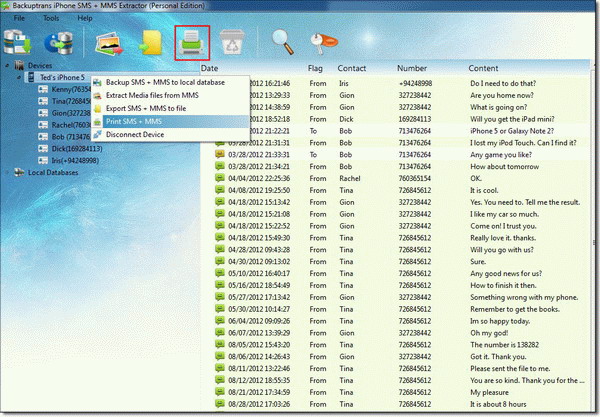
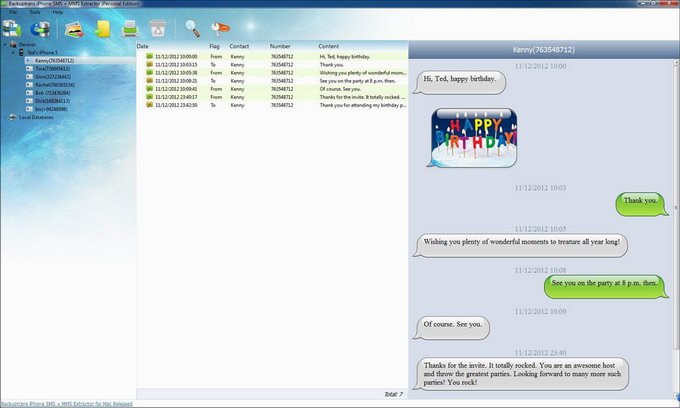
Want to print out your iPhone SMS MMS Messages for a court or something? Backuptrans iPhone SMS + MMS Extractor must be the best tool which lets you do it with ease. Just connect your iPhone to computer via USB and then simply click "Print" button. All your iPhone Messages (SMS & MMS) will be printed out in conversations like what they look on your iPhone. You can even choose to print all messages from iPhone or print messages with a single contact. The following tutorial will show you how to print iPhone SMS MMS on computer step by step:


Step 1: Run Backuptrans iPhone SMS + MMS Extractor on computer and connect iPhone to computer with USB cable. Then our software will automatically read SMS and MMS messages from iPhone and show them on its main interface.


Step 2: Click the iPhone in Devices list. Turn to top toolbar and press "Print SMS + MMS" button or go File ->Print SMS + MMS.


Tip: If you want to print messages with a single contact. Please click your wanted contact name under the iPhone. Turn to top toolbar and press "Print SMS + MMS" button or go File ->Print SMS + MMS.


Step 3: Choose a printing style.

Step 4: Prewiew the messages before printing.

Done!

Free download Backuptrans iPhone SMS + MMS Extractor onto your computer to try.

If you are using Mac, please use Backuptrans iPhone SMS + MMS Extractor for Mac instead.

Best luck!


Related:
How to print Android SMS and MMS on computer?


Baca Selengkapnya ....

Transfer SMS Text Messages between iPhone and Android Phone

Posted by Unknown Rabu, 02 Oktober 2013 0 komentar
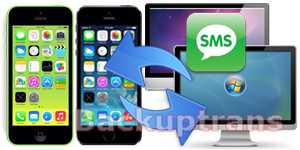
Own both an iPhone and an Android Phone and want to transfer SMS Messages between iPhone and Android Phone?  Backuptrans iPhone Android SMS Transfer + must the the best software for managing all your SMS Text Messages smoothly.  It provides an direct way to transfer SMS between iPhone and Android Phone on computer. You just need to connect your iPhone and Android to Computer via USB and then click the "Transfer" button. All text messages will be merged perfectly.

Copy all Android text messages to iPhone


Features:
  • Transfer SMS between iPhone and Android
  • Save SMS from iPhone/Android onto local database on computer
  • Restore SMS from local database to iPhone/Android.
  • Copy SMS from iTunes Backup to iPhone/Android
  • Transfer SMS between two iPhones, transfer SMS between two Android phones
  • Export SMS to document files such as txt, csv, doc or html
  • Print out SMS messages in conversations
  • iMessage supported also

Related Guides:

How to move iPhone text messages to Android?
How to copy Android text messages to iPhone?
How to transfer SMS messages from iPhone to other iPhone?
How to transfer SMS messages from Android to other Android?
How to extract text messages from iTunes backup to iPhone or Android?


Best Luck!

Baca Selengkapnya ....

iPhone 5S/5C SMS Backup and Restore on Computer

Posted by Unknown Selasa, 24 September 2013 0 komentar
[Tips] iPhone 5S/5C SMS Backup and Restore on Computer

Backuptrans iPhone SMS Backup & Restore is a great program which lets you to backup and restore iPhone 5S/5C SMS on computer easily. You just need to connect your iPhone 5S/5C to computer via USB and then click the "Backup SMS" button. All your iPhone 5S/5C SMS Text Messages will be saved on computer.


Unlike other iPhone SMS Transfer programs(that can only extract SMS from iPhone on computer as a document file), Backuptrans iPhone SMS Backup & Restore supports SMS restore also. It provides an easy way to restore SMS Text Messages from computer back to your iPhone or even to a new iPhone. For Mac, please use Backuptrans iPhone SMS Backup & Restore for Mac to help.


The following article will show you the detailed solution on how to backup and restore iPhone 5S/5C SMS on Computer step by step:

http://www.backuptrans.com/guides/how-to-backup-restore-iphone-5s-5c-sms-text-messages.html


Hope this can help.

Best luck!

Related:
How to Transfer SMS from iPhone 5/4S/4/3GS to iPhone 5S?
How to Transfer SMS Text Messages from Android to iPhone 5S?


.

Baca Selengkapnya ....

Transfer and Copy Contacts from Android to iPhone 5S Directly

Posted by Unknown Rabu, 18 September 2013 0 komentar
"Is there a way to move Contacts from Android to iPhone 5S without using Gmail?"

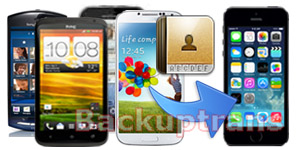
YES. Backuptans Android Contacts to iPhone Transfer provides an easy way to transfer and copy Contacts from Android to iPhone 5S directly on computer. You just need to connect your Android and the iPhone 5S to computer via USB and then click "Transfer Contacts" button on Backuptrans software. All Android Contacts will be transferred and merged perfectly on your iPhone 5S.  The following tutorial shows you how to transfer Contacts from Android to iPhone 5S step by step:


Step 1: Run Backuptrans Android Contacts to iPhone Transfer and then connect Android and iPhone 5S to computer with USB cable. Then the software will automatically read all contacts from your Android/iPhone 5S and show them on its main interface.

Step 2: Click the Android in Devices list. Turn to top toolbar and press "Android to iPhone" button or go File -> Phone to Phone Transfer -> Android to iPhone.

Step 3: Choose your target iPhone 5S that you want to transfer Contacts to. Click Confirm to continue.

Done! All your Android Contacts have been transferred and merged on iPhone 5S.

Watch Video:


Free download  Backuptrans Android Contacts to iPhone Transfer on your computer to try.

If you are using Mac, please download Backuptrans Android Contacts to iPhone Transfer for Mac instead.


Related:
How to Transfer SMS Text Messages from Android to iPhone 5S?
How to Transfer SMS from iPhone 5/4S/4/3GS to iPhone 5S?

Best luck!

Baca Selengkapnya ....
Trik SEO Terbaru support Online Shop Baju Wanita - Original design by Bamz | Copyright of samsung galaxy boost mobile.